


What attackers actually do
- Phishing: a copy of the exchange's login page, reached through a search ad, an email or a message. You type your password and 2FA code, and the attacker uses them seconds later.
- Fake support: someone contacts you on Telegram, WhatsApp, X or by phone, claiming to be from the exchange, and talks you into "verifying" funds by sending them somewhere.
- SIM swap: the attacker convinces your mobile operator to move your number to their SIM card, then receives your SMS codes.
- Malware: a fake wallet app, browser extension or "trading bot" that steals passwords or replaces copied addresses with the attacker's.
- Investment and romance scams: a friendly stranger slowly builds trust and then introduces a "platform" with guaranteed returns.
The 8 settings to turn on today
- Use a unique password of at least 14 characters for the exchange, stored in a password manager, not reused anywhere.
- Enable two-factor authentication with an authenticator app, then disable SMS as your only 2FA method if the exchange allows it.
- Add a passkey or hardware security key if the exchange supports it; these cannot be phished.
- Set an anti-phishing code. Every genuine email from the exchange will contain your secret word; emails without it are fake.
- Turn on the withdrawal address whitelist, so funds can only go to addresses you approved in advance.
- Review the device and session list, and remove any device you do not recognise.
- Protect the email account linked to the exchange with its own strong password and 2FA. Whoever controls your email can often reset everything else.
- Ask your mobile operator for a SIM PIN or port-out protection to make SIM swaps harder.
Verify that a website, email or person is official
Large exchanges run official verification tools. You paste a website address, email address, phone number or Telegram username, and the tool tells you whether it belongs to the exchange. Use it whenever you are unsure — especially when someone contacts you first.
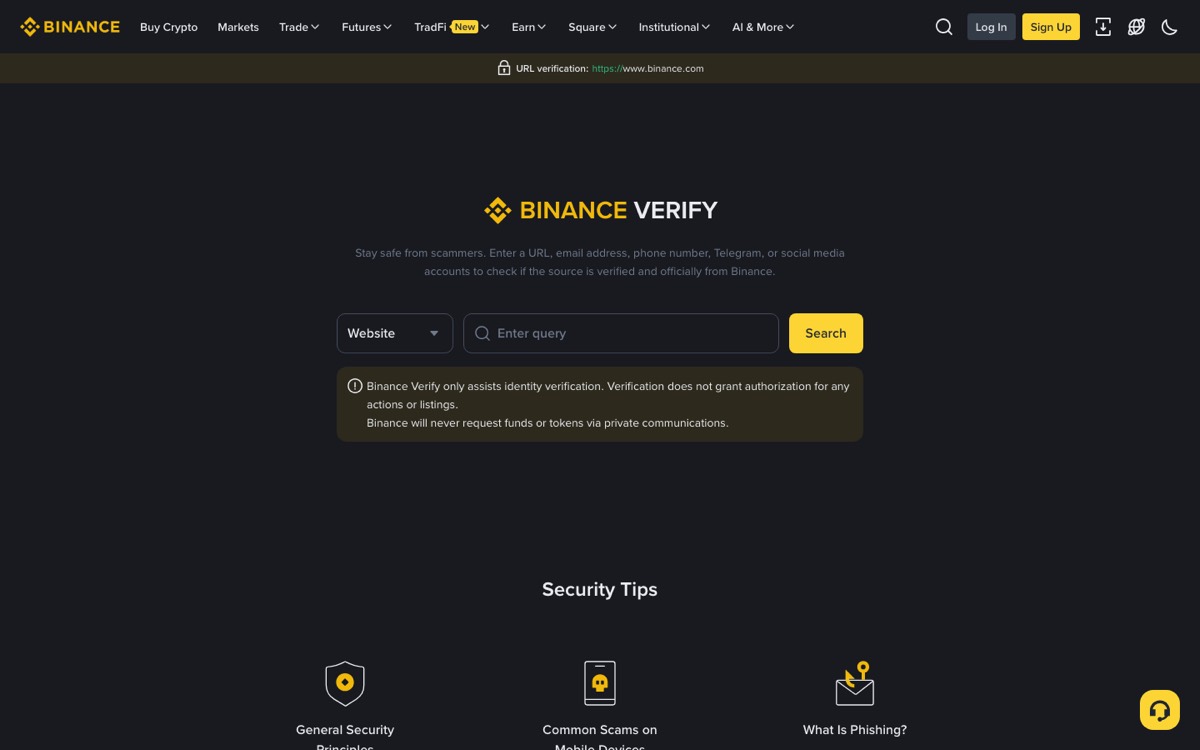
How to recognise phishing
- The address bar is slightly wrong: an extra letter, a different ending, a hyphen, or a long subdomain before the real name.
- The message creates urgency: your account will be frozen, a withdrawal is pending, you must act within 30 minutes.
- Someone asks for your password, 2FA code, seed phrase or screen-sharing. Real support never needs these.
- You are asked to install remote-access software such as AnyDesk or TeamViewer to "fix" a problem.
- An "airdrop" or "reward" requires you to connect a wallet and approve a transaction you do not understand.
If you have already typed your password or a 2FA code into a page you are unsure about, act now: change the password from the real site, reset 2FA, log out all other sessions and check the withdrawal history.
How real support behaves
Genuine exchange support answers inside the official app or website chat, after you contact them. They do not message you first on social media, they do not ask for codes or passwords, and they never ask you to move funds to a "safe account". If you remember only one rule from this article, remember that one.
Keep your devices clean
- Install apps only from the official app store listing linked on the exchange's website.
- Keep your phone and computer updated, and avoid jailbroken or rooted phones for finance apps.
- Do not install browser extensions you do not need, and never install a "crypto helper" extension from a message.
- Use a separate email address for financial accounts if you can, and avoid logging in on shared or public computers.
Exchange or your own wallet?
Keeping funds on a large, regulated exchange is simpler for beginners: you can reset a password, recover a lost 2FA device with identity checks, and get help from support. The risk is that you depend on the exchange.
A self-custody wallet gives you full control, and no company can freeze or lose your coins. The trade-off is full responsibility: the 12 or 24-word recovery phrase is the only key. Anyone who sees it can take everything, and if you lose it, nobody can help. Write it on paper, never photograph it, never type it into a website, and never share it with anyone, including people claiming to be support.
If you think your account is compromised
- Use the exchange's "disable account" or "freeze account" option in the security menu, or contact support from the official app immediately.
- Change your email password, then the exchange password, and reset 2FA.
- Check withdrawal history and API keys; delete any API key you did not create.
- Record the time, addresses and transaction IDs of any unauthorised transfers and report them to the exchange and the police.
- Beware of "fund recovery" services that contact you afterwards. They are almost always a second scam.
A five-minute monthly habit
Once a month, open your security settings and check four things: that 2FA is still on, that the device list contains only your devices, that the whitelist contains only addresses you recognise, and that no API keys exist that you did not create. It takes five minutes and catches problems early.
Helping family members stay safe
If you introduce parents or relatives to crypto, set up their security with them, in person, before they deposit anything. Write down for them the three sentences that prevent most losses: support never contacts you first, nobody needs your codes, and any deal that requires urgency or secrecy is a scam. Older relatives are the favourite targets of fake-support and investment scams precisely because they are polite and trusting.
Setting up 2FA properly
When you enable app-based 2FA, the exchange shows a QR code and a text key. Scan the QR code with the authenticator app, then write the text key on paper and keep it with your other important documents. If you lose or change your phone, that key lets you restore the codes; without it, you will need to go through a slower identity check with support.
Do not store the key or a screenshot of the QR code in your email, cloud photos or notes app. Anyone who reaches those accounts could rebuild your 2FA. Paper in a safe place, or a password manager protected by its own strong password, is the right home for it.
Once the app works, test it by logging out and in again. Then, if the exchange allows it, remove SMS as a fallback method so that a SIM swap alone cannot unlock your account.
API keys and "trading bots"
Exchanges let you create API keys so that software can trade on your behalf. Scammers exploit this by promoting "automatic profit" bots that ask for your API key with withdrawal permission enabled. Never give anyone an API key with withdrawal rights, restrict keys to specific IP addresses where possible, and delete keys you no longer use. If you did not create a key yourself, delete it immediately.
Travelling and public networks
Logging in over hotel or café Wi-Fi is not dangerous by itself when the site uses HTTPS, but public networks make it easier for attackers to show you fake login pages. Use your mobile data for financial apps while travelling, keep the app rather than the browser for logins, and be extra suspicious of unexpected "verification" prompts while you are away from home.
Reading security emails and SMS
Exchanges send emails and text messages for logins, withdrawals and setting changes. Read them. An unexpected "new device login" or "withdrawal confirmation" email is often the first sign that someone else has your password. Check the anti-phishing code in the email first: if it is missing, the email is fake and you should not click anything in it. If it is present and you did not take that action, go straight to the official app, change your password and freeze the account.
Text messages are harder to verify, because senders can disguise their name. Treat any SMS containing a link as suspicious, even if it appears in the same thread as genuine messages from the exchange. Open the app yourself instead of tapping the link.
Plan for losing your phone
A lost or broken phone is the most common reason people get locked out of their own accounts. Prepare now: keep the 2FA backup key on paper, note which email and phone number are linked to each exchange, and keep a photo of your ID document somewhere safe so you can complete a recovery check. If you use a passkey, register a second device as a backup. Ten minutes of preparation can save you days of waiting for support.